
Choosing land acquisition software: parcel maps, outreach, and the CRM
Compare seven land acquisition tools, then test parcel research, owner outreach, land CRM handoffs and total cost with the same candidate.
Evaluate land acquisition software with one candidate site and a record another land analyst can use. Follow the parcel from discovery to the next owner conversation, checking the source notes, exports and follow-up work along the way. For a homebuilder team, a successful demo should leave enough evidence to decide which tasks the software can handle and which still need another tool or a person.
This guide is written by Pillar, a land acquisition platform. It explains how we would evaluate the workflow, including where separate tools may suit a team better. Vendor examples below reflect public product descriptions checked October 19, 2026. We have not run a comparative hands-on test of these platforms. The bounded Pillar walkthrough later in this guide records a search, CRM save and reopened note; it does not establish the other products’ performance or a complete team handoff.
Build a shortlist for your land team
For a homebuilder, the purchase question is whether the software can support the path from a candidate parcel to the next owner conversation. A research map, a parcel-data subscription and a land CRM can overlap while covering different parts of that path. Choose the product and plan you will actually use, then ask a colleague to repeat the handoff.
The seven options below are alphabetical. They are starting points for a demo, with a specific question to test for each one. A feature omitted here remains untested; its omission does not establish that a vendor lacks it.
Acres
Acres' developer page describes land research alongside a shared portfolio with documents, comments and customizable columns. Include it when the team needs to carry site research into a collaborative pipeline. Ask the vendor to show your target counties, the sources behind the fields you need, and what a colleague can see or change in the selected plan.
Land id
Land id's property development page describes map layers, site-plan overlays and visual tracking of opportunities and projects. Include it when presenting a site and its research on a map is central to the work. Test how your owner conversation and next follow-up stay connected to that map; a visual pipeline alone does not settle every outreach requirement.
LandTech
LandTech's US product page describes site sourcing, preliminary diligence, direct owner outreach and pipeline management. Include it when those tasks need to move through one team workflow. Ask for a demonstration in your actual market, using the proposed subscription, and record the work required between finding a candidate and assigning an owner follow-up.
LightBox Vision, formerly LandVision
LightBox identifies Vision as formerly LandVision and describes map-based property and ownership research, prospect filters and exports. Include it when ownership portfolios and property research drive your search. Confirm which mapping, data-delivery and relationship-management products are in the quote, then demonstrate the handoff to your team's existing system.
Pillar
Pillar connects parcel research, acquisition lists, owner contact lookup and direct mail with an acquisition workflow. Include it when the repeated handoff between research and pursuit is the problem. Test an included candidate on the intended plan, then have a colleague reopen the research note and identify the person responsible for the next action. Use the current pricing and plan guide to record the allowances behind that test.
Prophetic
Prophetic's public site describes homebuilder-focused off-market sourcing and a shared pipeline for deals and conversations. Include it when your team wants to evaluate sourcing and pursuit together. Bring the same buy box and candidate used in the other demos, and ask to retrace the source records, assumptions and handoff behind the result.
Regrid
The Regrid Property App describes parcel filters, notes and photos, map layers, and exports to CSV, shapefile or KML/KMZ. Include it when parcel research and delivery into existing tools are the main requirements. Test the selected app plan's export allowance and the destination your team uses for owner follow-up. Evaluate a separate data or API agreement against its own deliverable and terms.
For a closer look at parcel-data versus map-presentation requirements, use the Regrid and Land id comparison. This guide addresses the broader acquisition handoff. Across all seven products, map layers and automated analysis still need the appropriate source verification and professional site review; a software demo does not establish that a property can be developed.
Compare the cost of the workflow you need
Request a dated quote for the same number of users and the same required work. Record the currency, billing period and commitment. A monthly equivalent billed annually is different from a month-to-month subscription; use the payment schedule in the quote when budgeting.
Keep these costs and limits separate:
- Seats, permissions and any minimum team commitment.
- Geographic coverage, required datasets and paid data add-ons.
- Search-result, export and data-retention allowances.
- Owner-contact lookups, outreach credits and what a credit buys.
- Setup, imports, integrations and the recurring manual handoff to other tools.
- Renewal terms and the records you can take with you when you leave.
An unanswered price or allowance stays unknown. Record a required add-on or a confirmed manual step alongside the subscription before deciding whether the arrangement fits your budget. Check the initial term separately from renewal pricing and avoid adding quotes in different currencies or billing periods.
The software evaluation worksheet includes a plan-and-cost record. Attach the quote or public plan source, then record the actual demonstration below it. Public feature descriptions help build the shortlist; the recorded test establishes whether the selected plan meets your requirement.
Start with the work your team already does
Pick a real candidate in a market you know. Write down its county and parcel ID, why it could fit your buy box, what you need to verify, and who owns the next action. Run that same record through each product you are considering.
Try five tasks:
- Find the right parcel and preserve its identifier.
- Inspect the sources behind acreage, ownership, and relevant constraints.
- Save the opportunity with a short decision note.
- Connect the owner conversation and any outreach to the opportunity.
- Give another team member enough context to take the next step.
Record where you export, retype, reconcile duplicates, or lose a source link. Those handoffs are often the reason to replace a tool. If your current setup handles them well, a migration may add more work than it saves.
Homebuilder workflow example: search, save and reopen the research note
We recorded this Pillar walkthrough on October 19, 2026 in an existing signed-in account. The buy box is illustrative: a homebuilder researching 10–50 gross acres in Mecklenburg County, North Carolina. The parcel record and UI actions below are real observations. They are not a customer acquisition, a vendor comparison or a feasibility finding. We did not independently test which subscription tiers can complete every step.
Set the search scope before reading the results
Open Find properties, choose Mecklenburg County, NC, and set Property size to 10–50 acres. For this demonstration we left Use developable acres unchecked and cleared the building-size ceiling. The visible selections were Land, Private owner type and Parcels + assemblages. This is a demonstration of the sequence, not an exhaustive county inventory or a count benchmark; we did not normalize every advanced filter for a cross-vendor search comparison. In your own demo, record every active filter and the search date in the worksheet before comparing tools.
Gross acreage defines this example’s search criterion. A filtered result does not establish residential permissions, access, service capacity or the number of homes the site could support. If you use a derived acreage filter, inspect its definition and exclusions before interpreting the result.
Save one candidate without promoting it to a qualified opportunity
We selected a Hiwassee Road record in Huntersville. The search card displayed 18.5 acres; the saved record displayed 18.48 acres, one parcel and APN 01131107. Those are Pillar UI observations. The current official parcel identity, acreage basis and source revision date still need verification.
On the result card, Save opened Save to CRM. We chose My pipeline and Lead, then saw Saved as Lead. In CRM, searching for Hiwassee reopened the saved candidate. We renamed it Workflow demonstration — Hiwassee Road so the test would not look like an active pursuit. This records a successful save and retrieval in the account used; it does not establish a project-capacity allowance for another plan.
Leave a note that preserves the unanswered questions
We saved a note identifying the illustrative buy box, the observed acreage and mapped zoning label, the missing official-source checks and a hold for identity, zoning, access and water/wastewater review. It names the land analyst’s next action: record the official parcel identifier and planning source before the acquisition lead reviews the open questions.
We closed and reopened the record and confirmed the note remained. The screenshot shows that reopened demonstration record. The parcel outline is a research display, not a surveyed boundary or a development assessment.
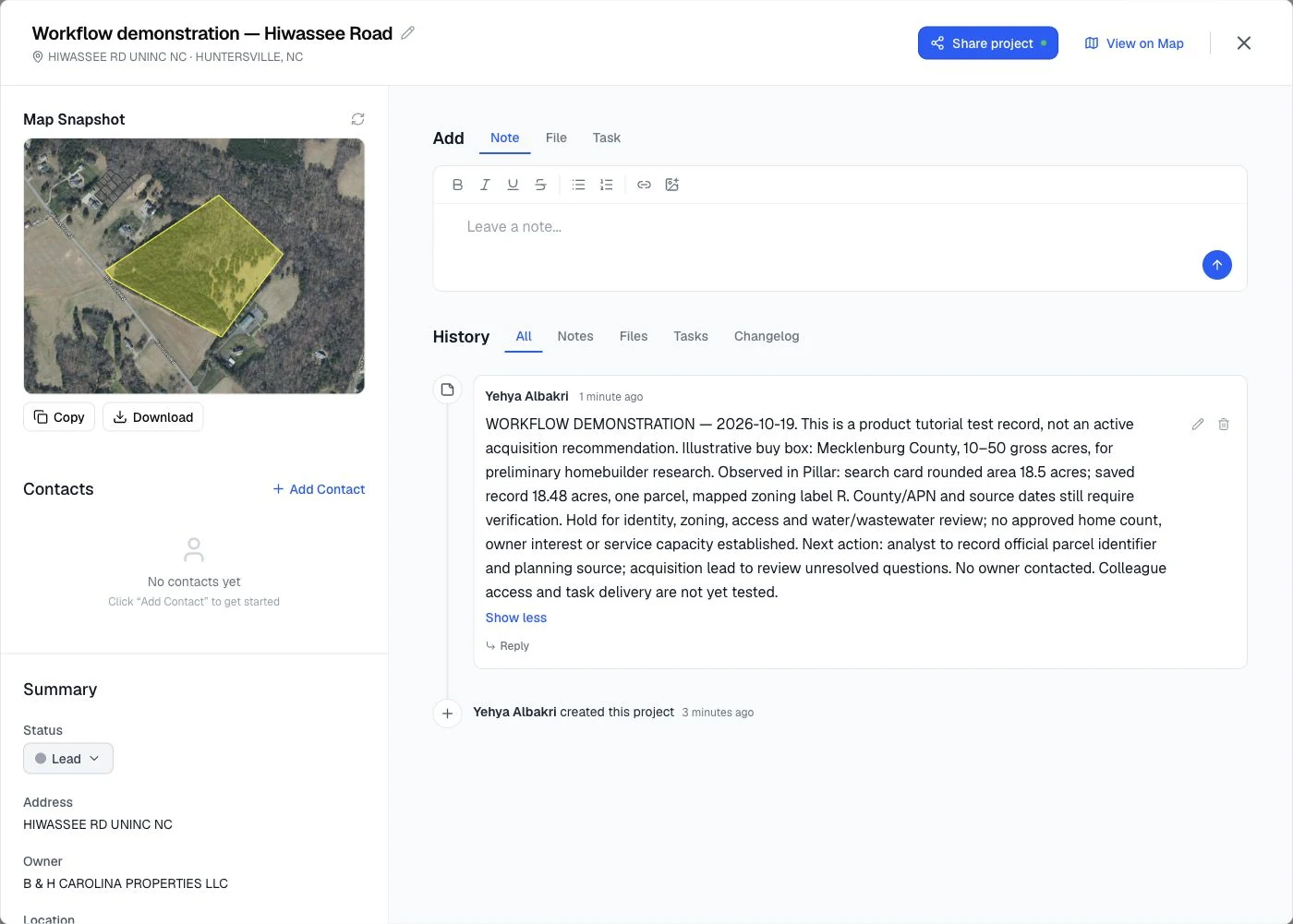
Open the full-size recorded screenshot to inspect the note. No owner contact lookup or outreach was performed. The record had no contacts at capture time; that observation says nothing about contact availability.
Finish the handoff test in the account your team will use
The observed part of this walkthrough stops at saved-record retrieval and note persistence. A written next action is not proof that another person received a task. We did not test a second user’s access, task delivery, exports, integrations or paid-contact allowances.
Download the homebuilder workflow record. It separates the demonstrated steps from a fictional handoff rehearsal. Copy the same unresolved question into a manual worksheet as a baseline, then have a permitted colleague use the actual destination without your explanation. Ask them to identify the parcel, the source still needed, the responsible person and the next action. Record what they could actually see and do. If a plan, permission or manual step changes that result, add it to the cost-and-work record before making a purchase decision.
Use a land CRM evaluation worksheet
Keep one worksheet for each product, plan and user role you test. Write your required outcome before the demo: for example, a colleague must be able to reopen the opportunity, identify every included parcel, read the unresolved site question and find the person responsible for the next action. Test the same outcome in your current spreadsheet or CRM too.
Download the software evaluation worksheet. It records the candidate, requirements, observed result, evidence file or source, remaining manual work and decision. It starts with every test marked “Not tested.”
Use these evidence states:
- Observed: you completed the task on the recorded plan and retained evidence of the result. Record whether that result met your requirement.
- Documented only: a vendor page or written answer describes the capability, but you have not completed the task yourself.
- Not tested: the demo did not answer the question. Keep an owner and next action with it.
- Unsupported: the tested plan cannot provide the required outcome, based on a recorded failed test or explicit vendor confirmation. A missing demo is not enough to reach this conclusion.
A product can meet your requirements with a documented manual handoff. Count that work and decide whether your team can maintain it. Avoid combining untested requirements into a numerical score that makes an incomplete comparison look settled.
When a mapping tool is the main need
Start here when your hardest question is where to look or whether a candidate deserves more investigation. Test coverage in your actual counties, source dates, filtering, layer visibility, and how the map communicates uncertainty.
A map is not a survey, an entitlement decision, or confirmation of utility capacity. Keep those follow-ups visible in whichever system you select.
When the CRM is the main need
If you already have reliable sourcing and research, the bottleneck may be follow-up. Test whether your team can see the last conversation, next action, responsible person, and current stage without opening several files.
Use a candidate with more than one parcel and an owner represented by an entity. Ask how the system relates those records and prevents a second team member from starting duplicate outreach. Do not assume an ordinary sales opportunity record models a land assemblage correctly without setup.
A separate CRM can be the right choice when your organization already relies on it for reporting or downstream work. Require an actual export or integration demonstration before assuming a new mapping product will keep it synchronized.
When an integrated acquisition workspace fits
Consider a shared workspace when the repeated handoff between research and pursuit is the problem. Test the full sequence from an included candidate to the colleague's next action. Record where research, ownership, notes or responsibility become separated along the way.
Compare saved-project capacity separately from readable search rows, export allowances and outreach credits. The pricing page and plan guide explain the current limits. Pillar's results guide also distinguishes saving included parcels to CRM from permanently retaining an entire generated dataset. Record the plan used for each demonstration and the allowance that applies to your expected workload. A trial demonstration may include access the eventual subscription does not.
If your main problem is construction scheduling, job costing, or managing occupied assets, test software built for that work. Land acquisition features alone do not establish fit for the rest of the development lifecycle.
Check what survives a spreadsheet handoff
Ask for the actual export your team would use, then open it outside the product. Agree on the required fields first: parcel identifier and jurisdiction, the relationship to the opportunity, recorded ownership, research notes and the next action. A vendor may put some of these in separate files or offer another handoff method. Record that arrangement and test whether a colleague can reconstruct the record.
Keep the original file before opening a working copy in a spreadsheet. Microsoft explains that Excel can remove leading zeros from numeric-looking text. Import parcel identifiers as Text and compare the result with the original. Formatting an already-altered number to look longer does not establish that the original identifier survived.
Run this small check:
- Count the expected and exported records, recording any selection or plan limit.
- Compare each identifier with its original value, including leading zeros, separators and jurisdiction.
- Check whether notes with commas or quotation marks remain in the correct field. RFC 4180 describes common CSV quoting conventions; the file extension alone does not prove that your required information was exported.
- Verify how multiple parcels relate to one opportunity and which owner record belongs to each parcel. Two rows do not necessarily mean two separate pursuits.
- Have a colleague reopen the record in the destination you actually use. Ask them to identify the unresolved question and next action without your explanation.
Download a fictional two-parcel input fixture if you want to rehearse the comparison without customer data. It contains identifiers 000123001 and 000123002 under one fictional candidate, an explicitly fictional owner, blank source dates and separate research notes. These are invented test inputs, not real parcels, a vendor export or evidence that any product passed the test. Replace them with a permitted candidate from your own workflow for the actual evaluation.
Use the fixture only for file-handling rehearsal, importing it into a product only if that format is supported. Test a platform-sourced candidate separately for search coverage and result-export allowances. Your own uploaded rows and platform-sourced records can have different limits; Pillar's plan guide makes that distinction explicit.
Test geometry separately when your mapping deliverable requires it, using a format the product actually provides. A CSV with latitude and longitude fields may locate a point without preserving a parcel boundary. For GeoJSON, RFC 7946 defines the geometry types and longitude–latitude coordinate order. Reopen the geometry and check it against the source; do not assume a CRM or CSV export includes it. This is a data handoff check, not a survey or a determination that land can be developed.
Leave the demo with a decision record
Write a short note for each candidate product: what worked, what required another tool, which data or integration questions remain, and the cost assumptions you used. Keep “not tested” separate from “not supported.”
Then let a teammate repeat the workflow from your saved record. If they need you to explain which parcel, which source, and which owner you meant, the handoff still needs work.
For example, suppose the fictional two-parcel input reaches your destination with one note missing. Record the observed gap and investigate where it occurred: the source product, selected export fields, spreadsheet import or destination mapping. Leave the purchase decision open until that question is resolved or your team accepts a tested workaround. This example describes a possible failure to investigate; it does not report a test result for Pillar or another vendor.
Use the desktop screening checklist for the research steps and the acreage comparison guide when the source fields disagree. Bring those same questions to every demo so the comparison reflects your work.